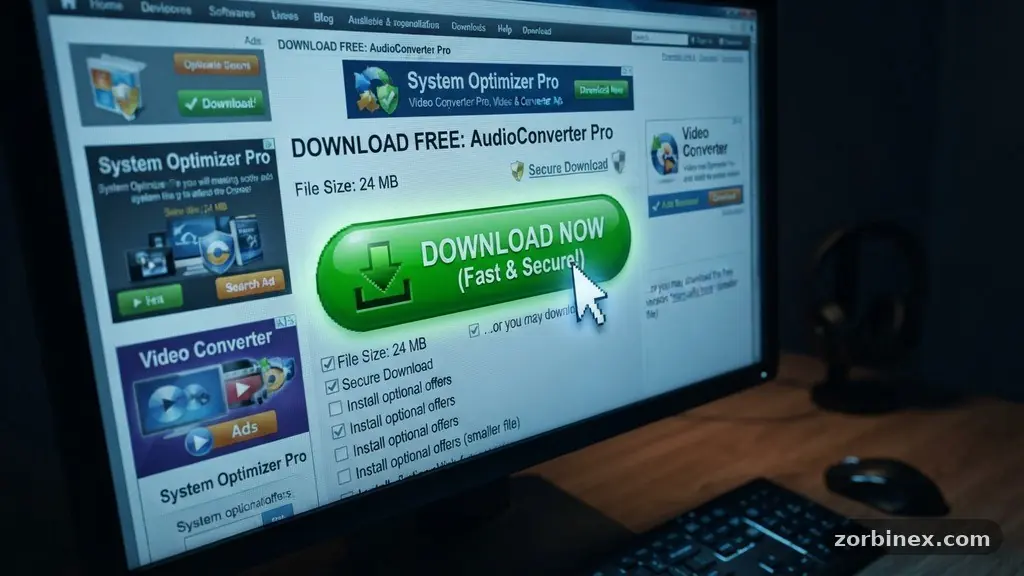
Learning the art of recognizing a Fake Download Button Before Clicking It is one of the most effective ways to secure your digital life. These deceptive interface elements are designed to trick you into downloading unwanted software, often masquerading as legitimate installers or necessary updates. By understanding the visual cues and technical indicators of these traps, you can browse the internet with much greater confidence.
Staying vigilant against these common online threats helps you avoid malware and social engineering tactics that aim to compromise your personal data. This article explores the specific signs of these threats, providing you with the knowledge to identify them instantly and protect your computer from harm.
Visual Indicators of Deceptive Buttons
The most common red flag when you are recognizing a Fake Download Button Before Clicking It is the sheer abundance of competing calls to action. Legitimate websites typically feature a single, clear button to initiate a download.
If you see three or four different “Download” buttons scattered across the page, you are likely looking at advertisements rather than the actual file link. These ads are often served by third-party networks that use aggressive tactics to grab your attention.
Color and placement are also major indicators of a malicious intent. Genuine download buttons usually match the site’s branding and color scheme perfectly. Fake buttons often use high-contrast, neon colors like bright green or flashing red to demand your focus.
If the button looks like a generic banner ad or sits inside a box labeled “Sponsored,” steer clear. Always hover your mouse cursor over the button without clicking it to inspect the destination URL displayed in the bottom corner of your browser.
Technical Warning Signs in URLs
Inspecting the destination link is a foolproof method for identifying a threat before you engage with it. When you hover over a button, your browser reveals the actual address where the link leads.
A legitimate site will point to its own domain or a verified content delivery network. If you see a long string of random characters, a suspicious redirect service, or a domain that has nothing to do with the software you expect, you have found a fake.
Many of these buttons utilize malicious redirects to bypass security filters. They might send you through several different domains before eventually landing on a site that serves an executable file.
You should be particularly wary of links that do not clearly state the file name or type in the URL structure. If the link looks like a jumbled mess of alphanumeric code, it is almost certainly a trap designed to deliver unwanted software to your device.
Common File Extensions to Avoid
When you do initiate a download, the file extension is your final line of defense. Executable files, which are used to install programs, are the primary vehicle for malware.
You should be extremely cautious if you are expecting a document or an image but are prompted to save a file with a suspicious extension. Attackers often use these to hide scripts that run automatically once opened.
The following list highlights the most common file types that, when unexpected, should trigger an immediate alarm:
- .exe: The standard Windows executable, commonly used to bundle malicious payloads.
- .msi: Windows Installer packages that can be used to execute silent installations.
- .bat: Batch files that run sequences of commands, often used to modify system settings.
- .scr: Originally screensaver files, these are now frequently used as disguised malicious executables.
- .vbs: Visual Basic scripts that can interact directly with the operating system.
The Role of Dark Patterns in Web Design
Dark patterns are design choices intentionally crafted to trick users into doing things they did not intend to do. In the context of fake buttons, these patterns often involve confusion and misdirection.
A site might place a “Download” button right next to a “Cancel” button, hoping you will click the wrong one out of impatience. They might even use text that says “Download” but links to a completely unrelated service or an ad page.
The Federal Trade Commission provides resources on protecting yourself from deceptive practices that often overlap with these web design traps. These sites rely on social engineering to create a sense of urgency. They might claim that your “download is ready” or that your “system is outdated,” pressuring you to click immediately.
By slowing down and observing the layout, you can easily spot these psychological ploys. Recognizing a Fake Download Button Before Clicking It requires you to ignore the text on the button and focus on the surrounding context.
Comparison of Legitimate vs. Fake Buttons
Distinguishing between a real and a fake element is easier when you compare their characteristics side-by-side. The following table illustrates the typical differences you will encounter while browsing.
| Feature | Legitimate Button | Fake Button |
|---|---|---|
| Placement | Integrated into the page design | Floating or in a sidebar ad |
| Destination | Directly to the file or hosting server | Redirects to a third-party site |
| Visuals | Consistent with site branding | Flashing, bright, or animated |
| Behavior | Initiates a direct file download | Opens a new tab or pop-up |
| File Type | Known and expected format | Often an unknown .exe or .zip |
Protecting Your System from Ad Injection
Ad injection occurs when malicious software on your computer or a compromised browser extension inserts fake content into the web pages you visit. This can make even reputable websites appear to host fake download buttons.
If you notice that every site you visit has strange, out-of-place download buttons, your browser may be infected. Regularly cleaning your browser extensions is a crucial step in maintaining your security.
You should periodically check your installed extensions and remove anything you do not recognize or use. Many of these malicious extensions are installed alongside free software or via deceptive pop-up ads.
By keeping your browser clean and updated, you minimize the chances of seeing these injected ads. Additionally, consider using a reputable ad-blocking extension to prevent these deceptive elements from even loading on your screen.
Verifying Files via Digital Signatures
Before you open any downloaded file, you can verify its authenticity using its file signature or checksum. A digital signature acts like a fingerprint for software, confirming that it was created by a legitimate developer and has not been tampered with.
Most operating systems allow you to right-click a file and view its properties to check for a valid digital signature. If the signature is missing or indicates an unknown publisher, do not run the file.
A checksum is another way to verify that a file is exactly what it claims to be. Many official software websites provide a MD5 or SHA-256 hash value that you can compare against your downloaded file.
If the hash values do not match perfectly, the file has been altered. This is a highly effective way to ensure you haven’t been tricked by a man-in-the-middle attack or a malicious host.
Frequently Asked Questions
What should I do if I accidentally clicked a fake download button?
If you clicked a button but did not run the resulting file, simply delete the file immediately and empty your trash. If you did run the file, disconnect your computer from the internet and run a full scan with a trusted antivirus or antimalware program.
Can I trust a download button if the website looks professional?
No, a professional appearance does not guarantee safety. Many malicious sites are designed to mimic the aesthetics of popular software repositories, banks, or official government portals to gain your trust.
Are all pop-up ads for downloads malicious?
While not every single pop-up is malicious, they are almost never a reliable way to download software. It is always safer to navigate directly to the official website of the software developer rather than clicking a link found in a pop-up.
Why do antivirus programs sometimes flag safe files as threats?
Antivirus software uses heuristics to identify suspicious behavior, which can sometimes lead to false positives. However, it is always better to be cautious; if a file is flagged, verify it by checking the official developer’s website or using a file scanning service.
How can I tell if my browser has been compromised by ad injection?
Common symptoms include seeing excessive ads on sites that usually have few, unexpected redirects, or the appearance of “Download” buttons on pages that clearly shouldn’t have them. If you suspect this, audit your installed extensions and perform a scan with a specialized cleanup tool.
Final Thoughts
Mastering the skill of recognizing a Fake Download Button Before Clicking It is a fundamental part of staying safe in our digital world. By paying attention to the URL, the file extension, and the overall design of the page, you create a powerful barrier against malware and social engineering. Always prioritize downloading software from official, trusted sources and take a moment to verify the file before you execute it.
If something feels off, trust your instincts and walk away. Protecting your computer is an ongoing process of vigilance, but with these simple habits, you can significantly reduce your risk. Stay curious, stay cautious, and enjoy a safer browsing experience every single day.