Optimizing your digital environment starts with the tools you use every day, which is why mastering essential Browser Settings That Improve Everyday Web Browsing can drastically change how you experience the internet. By adjusting a few key preferences, you can reclaim your focus, boost your connection speeds, and significantly tighten your personal data security.
These small tweaks often go unnoticed, yet they form the foundation of a faster and more private digital life. Whether you are a casual reader or a power user, fine-tuning your configuration ensures your browser works for you rather than against your productivity.
Managing Privacy and Tracking Protection
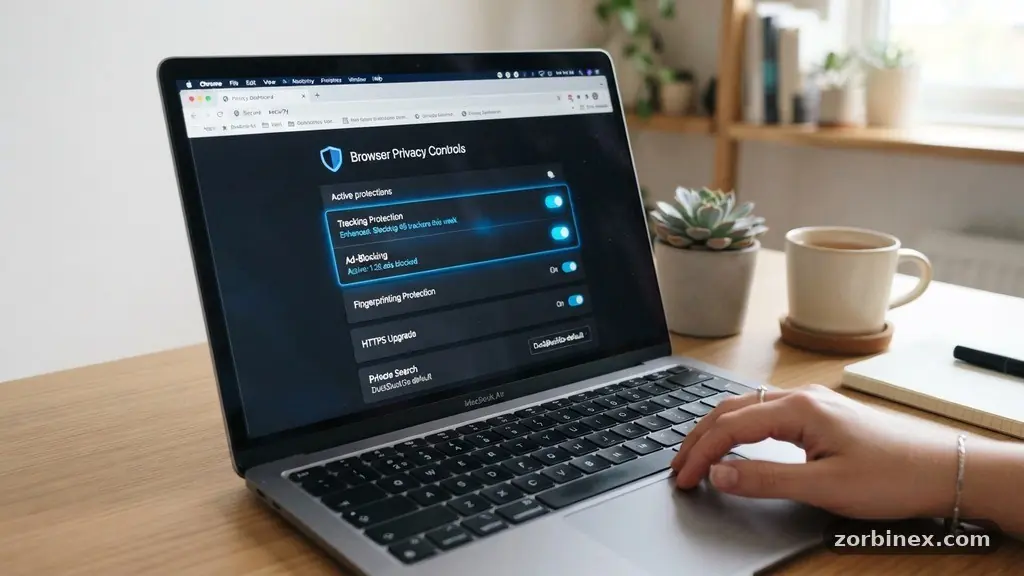
The most immediate change you can make involves configuring your privacy controls to limit how third parties monitor your activity. Modern browsers now offer robust built-in tools that act as a buffer between your data and advertisers.
By navigating to your privacy settings, you should enable “Strict” or “Enhanced” tracking protection. This feature blocks known trackers from following you across different websites, which often reduces the number of targeted ads you see.
Beyond simple tracking, you should audit your cookie management settings to prevent unwanted data retention. Most browsers allow you to block third-party cookies by default, which is a significant win for privacy.
If a specific site requires cookies to function, you can add an exception to your allow-list without compromising your broader settings. This granular control ensures you maintain functionality while limiting the footprint you leave behind.
You might also consider utilizing a privacy sandbox feature if your browser supports it, as this technology aims to replace invasive tracking with more anonymous interest-based advertising. While this is a newer development, keeping it active helps you participate in a more private web ecosystem.
Remember that these settings are not “set and forget” tools. Occasionally checking your privacy dashboard will help you see exactly how many trackers were blocked during your recent browsing sessions.
Optimizing Performance with Hardware Acceleration
If you find that your browser feels sluggish when viewing high-definition video or complex graphics, you likely need to toggle hardware acceleration. This setting allows your browser to offload heavy rendering tasks from your main processor to your dedicated graphics card. By distributing the workload, you free up your CPU to handle background processes and keep your interface feeling snappy.
To verify if this is active, look under your system or performance settings. Most browsers enable this by default, but it can sometimes cause conflicts with older drivers or specific hardware configurations.
If you notice flickering or visual glitches on web pages, try disabling it to see if the stability improves. For the vast majority of modern computers, keeping this setting turned on is the most effective way to ensure smooth scrolling and responsive media playback.
| Setting | Primary Benefit | Recommended Status |
|---|---|---|
| Hardware Acceleration | Smoother video and graphics | On |
| Tracking Protection | Reduced ad-targeting | Strict/Enhanced |
| Secure DNS | Encrypted web requests | On (Cloudflare/Google) |
| Pop-up Blocker | Fewer distractions | Always On |
Managing Site Permissions and Security
Your browser acts as a gateway for websites to access your camera, microphone, and location. Many sites request these permissions by default, but you should rarely grant them without a specific need.
You can review your site permissions in the settings menu to see a list of every domain that currently has access to your hardware sensors. Revoking these permissions for sites you no longer use is a simple way to minimize your digital exposure.
Another critical security layer is the implementation of secure DNS. By default, your internet service provider often tracks every website you visit through your DNS queries.
Switching to a secure provider like Cloudflare or Google within your browser settings encrypts these lookups. This prevents your ISP from building a detailed profile based on your browsing history, which is a major victory for personal privacy.
You should also enforce HTTPS-only mode whenever possible. This setting forces your browser to connect to websites using an encrypted connection, even if the site defaults to an insecure link.
If a site does not support encryption, your browser will display a warning before you proceed. This prevents you from accidentally entering sensitive information on an unencrypted page that could be intercepted by malicious actors.
Streamlining Productivity with Autofill and Passwords
Managing dozens of unique passwords is a major hurdle for modern web users, but your browser’s built-in password manager is designed to solve this. Instead of reusing weak passwords across multiple accounts, allow your browser to generate and store complex, randomized credentials for you.
This practice is significantly safer than relying on memory or simple, repetitive strings. Make sure to sync these passwords across your devices so you can access your accounts anywhere.
Autofill settings go hand-in-hand with password management by saving you time on repetitive tasks like filling out shipping addresses or payment information. When you store this data locally, it is encrypted and only accessible when you authenticate your session. This keeps your information secure while eliminating the friction of typing out long forms every time you make a purchase.
If you share a computer, be aware of who has access to these profiles. You should always use a master password or biometric authentication to lock your browser profile.
This ensures that even if someone has physical access to your device, they cannot easily export your saved credentials or access your payment history. Keeping these tools up to date is an essential part of maintaining a secure and efficient workflow.
Controlling Content and Distractions
The internet is often cluttered with intrusive elements that disrupt your reading experience. The pop-up blocker is the first line of defense, but you can go further by adjusting your content settings to disable autoplaying videos.
Many websites automatically play media as soon as a page loads, which consumes bandwidth and drains your battery. Disabling this behavior keeps your browsing experience quiet and controlled.
For long-form content, consider using reader mode, which strips away sidebars, headers, and advertisements to present only the text and images you need. This is a game-changer for focus, as it removes the visual noise that often leads to mindless scrolling. You can often customize the font size, background color, and spacing in reader mode to make the text easier on your eyes during late-night sessions.
You should also be mindful of your browser extensions. While they offer useful functionality, every extension you install consumes memory and can potentially track your data.
Audit your installed add-ons periodically and remove anything you haven’t used in the past month. A leaner browser with fewer extensions will almost always be faster and more stable than one burdened by dozens of forgotten tools.
Managing Cache and Data Synchronization
Over time, your browser accumulates a massive amount of temporary files known as the cache. While these files help websites load faster on subsequent visits, they can become corrupted or outdated, causing sites to display incorrectly.
If you notice a particular page behaving strangely, clearing cache files is often the quickest way to resolve the issue. You do not need to clear your history or cookies; just target the cached images and files.
Data synchronization is another powerful tool that keeps your bookmarks, history, and settings consistent across your desktop, laptop, and mobile devices. By signing into your browser profile, you ensure that your work is never lost if you switch hardware.
However, you should check your sync settings to ensure you are only sharing the data you are comfortable with. For instance, you might choose to sync bookmarks but keep your browsing history local to a specific machine.
If you ever find yourself using a public computer, you should rely on incognito mode rather than your main profile. This mode creates a temporary session that does not save your history, cookies, or site data once you close the window.
It is the safest way to log into sensitive accounts when you are away from your own personal devices. Relying on this habit prevents your personal data from being left behind on machines you don’t control.
Essential Browser Settings FAQ
How often should I clear my browser cache?
You generally do not need to clear your cache on a schedule. Only perform this action if you notice websites loading improperly or if you are troubleshooting a specific technical error.
Does using a password manager make me more vulnerable?
Using a built-in browser password manager is much safer than reusing simple passwords across multiple sites. Ensure your device is protected by a strong login password or biometric lock to keep your vault secure.
Can I see what permissions a website has?
Yes, most browsers allow you to click the lock icon or the settings icon next to the URL bar to view and edit the permissions for the specific site you are currently visiting.
What is the difference between Incognito and standard browsing?
Incognito mode prevents your browser from saving your history, cookies, and form data locally. It does not make you anonymous to your ISP, your employer, or the websites you visit, but it keeps your local device clean of your session data.
Why do some websites break when I enable strict tracking protection?
Some websites rely on third-party trackers for core functionality like login systems or interactive content. If a site breaks, you can usually click the shield icon in the address bar to temporarily allow tracking for that specific domain.
Conclusion
Mastering the configuration of your web software is one of the most effective ways to improve your daily digital experience. By implementing these Essential Browser Settings That Improve Everyday Web Browsing, you transition from a passive user to an active manager of your online environment. Whether it is through tightening your privacy, optimizing performance, or simplifying your workflow, every adjustment contributes to a safer and more enjoyable time spent online.
You can find more detailed documentation on these features through the World Wide Web Consortium’s guide to browser accessibility and settings. Start by reviewing your privacy and permission settings today, and you will immediately notice a cleaner, faster, and more focused way to navigate the internet.