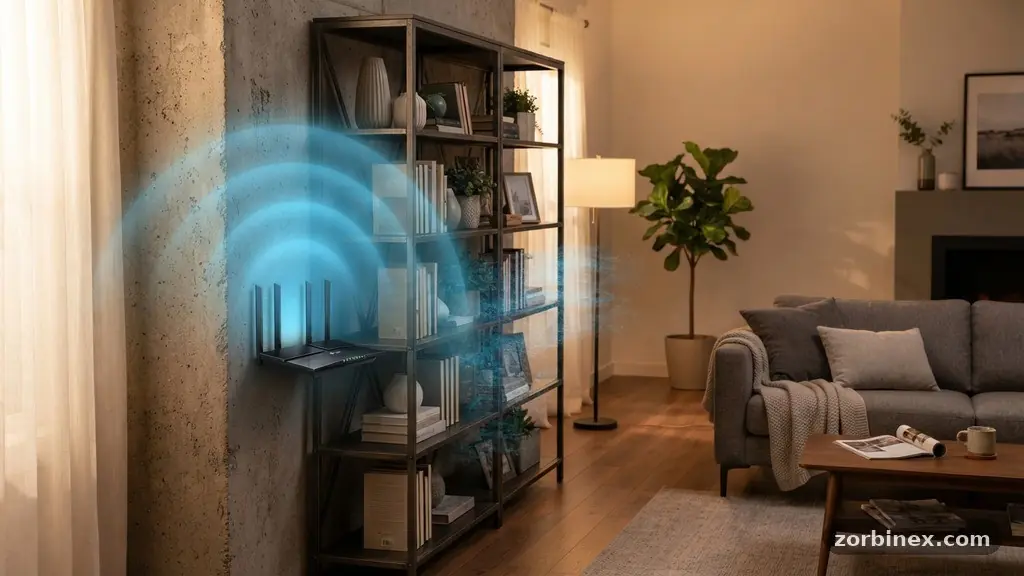
Understanding why your internet drops out in certain rooms is the first step toward fixing it. Identifying what causes Wi-Fi dead zones inside a home and how to improve coverage involves looking at both physical barriers and invisible electronic interference. Homes are complex environments filled with materials that block radio waves and devices that compete for the same airwaves.
By adjusting your hardware placement and upgrading your network equipment, you can effectively eliminate those frustrating connectivity gaps. This article explores the technical reasons behind poor performance and provides actionable solutions to help you achieve a reliable, stable connection in every corner of your living space.
Physical Obstructions and Signal Attenuation
The primary reason for spotty internet is often the physical construction of your house. Every wall, floor, and ceiling absorbs or reflects the radio waves transmitted by your router. This phenomenon is known as signal attenuation, where the strength of the signal diminishes as it passes through solid objects.
Drywall and masonry obstruction are the most common culprits. While standard wooden studs and drywall have a moderate impact on signal degradation, materials like brick, concrete, and stone are far more damaging. These dense materials act as physical shields, effectively stopping the Wi-Fi signal from reaching the other side.
Metal is perhaps the most significant offender in a residential setting. Large mirrors, stainless steel appliances, and even metal-framed furniture can reflect signals away from their intended destination. If your router is tucked behind a television or near a refrigerator, you are likely creating a massive dead zone immediately surrounding those objects.
Distance is the simplest factor contributing to range issues. Radio waves follow the inverse-square law, meaning the signal strength drops rapidly as you move away from the source. Even in a home with open-concept architecture, once you exceed 30 to 50 feet, the connection quality often degrades significantly.
The Role of Electromagnetic Interference
Beyond physical walls, your home is likely flooded with invisible noise. Electromagnetic interference occurs when other electronic devices emit signals on the same frequency as your router. This noise floor raises the background activity, making it harder for your devices to distinguish the data packets intended for them.
Microwave ovens are notorious for causing temporary outages. Because they operate on the 2.4 GHz frequency, they create massive amounts of interference whenever they are running. If your kitchen and home office share a wall, you might notice your video calls stuttering every time someone heats up lunch.
Bluetooth devices, cordless phones, and baby monitors also compete for space on the airwaves. When too many devices operate on the same channel, the network experiences congestion. This reduces the overall throughput and increases latency, leading to the perception of a dead zone even when the signal bars appear relatively full.
Improving your signal-to-noise ratio is essential for a high-quality experience. You can mitigate this by choosing the right frequency bands for your specific needs. Modern routers allow you to manage these frequencies to ensure that high-bandwidth activities stay clear of noisy environments.
Comparing 2.4 GHz vs 5 GHz Frequency Bands
Your router likely broadcasts on two distinct frequency bands. Choosing the right one for each device can drastically improve your coverage and speed. Each band has unique strengths and weaknesses that determine how well it handles your home’s layout.
| Feature | 2.4 GHz Band | 5 GHz Band |
|---|---|---|
| Range | Longer | Shorter |
| Obstacle Penetration | Excellent | Poor |
| Speed | Slower | Faster |
| Interference | High | Low |
The 2.4 GHz band is the workhorse of your network. It travels through walls and floors with ease, making it the best choice for devices located far from the router. However, it is prone to channel congestion because it is shared by many common household appliances and neighbor networks.
The 5 GHz band provides much higher data rates and lower latency. It is ideal for gaming, streaming 4K video, or video conferencing. The tradeoff is that its signal is easily blocked by physical barriers, meaning it struggles to reach rooms that are not in the direct line of sight of the router.
Many modern devices support band steering, which automatically moves your gadget to the best frequency. If your router does not do this, you may need to manually assign devices to specific bands. Keeping high-bandwidth devices on the 5 GHz band while leaving smart home sensors on the 2.4 GHz band is a common strategy.
Optimizing Router Placement
Before buying expensive new gear, look at where your router currently sits. Proper router placement is the most cost-effective way to fix coverage issues. Many people hide their routers inside cabinets or behind bookshelves to reduce clutter, which is a major mistake.
Your router should ideally be placed in a central, elevated location. Radio waves propagate outward and downward, so sitting the router on a high shelf or mounting it on a wall helps the signal reach more of the home. Keeping it away from other electronic devices reduces the risk of electromagnetic interference.
Avoid placing your router on the floor. Most of the signal will be absorbed by the floorboards or carpets, and the range will be severely limited. A clear line of sight to the areas where you spend the most time is the goal.
If your router is located in a basement or a far corner of the house, it is already fighting an uphill battle. Moving the router to a more central hallway can instantly increase the effective reach of your network. Sometimes, even moving the device a few feet to the left or right can clear an obstruction.
Upgrading to Mesh Wi-Fi Systems
If your home is large or has complex architecture, a single router is rarely enough. Mesh Wi-Fi systems have become the gold standard for providing uniform coverage. Unlike a traditional router with range extenders, a mesh system uses multiple nodes that work together as a single, unified network.
These systems utilize intelligent routing to ensure your devices always connect to the strongest node. As you walk through your home, your phone or laptop will seamlessly hand off from one unit to the next without dropping your connection. This eliminates the “dead spots” that occur when you move out of range of a single base station.
Most modern mesh kits support Wi-Fi 6 standards and utilize MIMO technology to handle multiple data streams simultaneously. This is particularly useful in homes with dozens of connected devices. By distributing the load across multiple access points, the network remains responsive even during peak usage hours.
Some systems support ethernet backhaul, which allows you to connect the nodes via physical cables. This is the ultimate way to maintain high speeds throughout a large property. If you have older wiring or can run a cable through the attic, this configuration provides the most stable performance possible.
Addressing Channel Congestion and Interference
If you live in an apartment complex or a dense neighborhood, your neighbors’ Wi-Fi signals might be interfering with yours. Every router broadcasts on a specific channel, and when too many networks overlap, performance plummets. This is a common form of channel congestion that many users overlook.
Most routers automatically select a channel, but they don’t always pick the quietest one. You can log into your router’s administrative interface to see a list of surrounding networks. Some advanced routers provide a heat map of channel usage to help you pick a less crowded frequency.
Updating your firmware is another simple step that can improve stability. Manufacturers frequently release updates that optimize how the hardware handles interference and data processing. Checking for these updates once every few months can prevent long-term performance degradation.
If you are curious about the technical standards governing your network, you can consult resources like the Wi-Fi Alliance to learn about the latest protocols. Staying informed about these standards helps you choose hardware that is built to handle modern connectivity demands.
FAQ: Common Wi-Fi Questions
Does a Wi-Fi range extender actually work?
Range extenders can expand your reach, but they often come with a performance penalty. They usually halve the available bandwidth because they have to receive and then re-transmit the signal. For a better experience, consider a mesh Wi-Fi system instead.
Why does my internet speed drop at night?
Speed drops at night are often caused by increased network congestion in your area. If many neighbors are streaming movies simultaneously, the local bandwidth provided by your ISP may be shared. This is different from a dead zone, which is caused by internal signal obstruction.
How many devices can a standard router handle?
While many routers claim to support dozens of devices, performance usually begins to degrade after 15 to 20 active connections. If you have many smart home gadgets, you might need a router with better processor power or a mesh setup to manage the traffic effectively.
Can I use my old router as an access point?
Yes, you can often configure an older router to act as an access point if you connect it to your main router via an ethernet cable. This is a great way to extend coverage to a garage or a basement without buying new equipment. It requires some technical setup to prevent IP address conflicts.
Is Wi-Fi 6 really necessary for a home?
Wi-Fi 6 is highly recommended if you have many devices or high-bandwidth needs like 4K streaming. It uses more efficient data transmission methods that reduce latency and handle network traffic better than older standards. It is not strictly necessary for simple web browsing, but it provides a more future-proof network.
Improving Your Home Network
Fixing Wi-Fi dead zones is rarely about one single change. It is usually a combination of moving your router, choosing the right frequency, and occasionally adding hardware like mesh nodes to cover larger areas.
Start by identifying the physical barriers and electronic noise sources in your home. By taking the time to position your equipment correctly and managing your network settings, you can ensure that your devices stay connected regardless of where you are.
The goal is to create a network that works for you, not one you have to constantly troubleshoot. Whether you are working from home or streaming entertainment, a stable signal makes all the difference.
When you understand what causes Wi-Fi dead zones inside a home and how to improve coverage, you gain the control needed to maintain a high-quality connection throughout your living space. Start with the basics of router placement, and build your setup from there to see lasting results.