Finding practical ways to make video calls more reliable on weak connections requires a shift in how you manage your local network hardware and software settings. When your internet signal struggles to keep up with high-definition streams, the result is often frozen screens, garbled audio, and disconnected meetings. By focusing on optimizing your hardware, limiting background traffic, and adjusting application-level configurations, you can significantly improve your call stability.
This article explains how to stabilize your connection, ensuring your digital presence remains consistent even when your service provider’s speed is less than ideal. You will learn specific, actionable steps to mitigate common issues like packet loss and network congestion effectively.
Hardwiring Your Connection for Stability
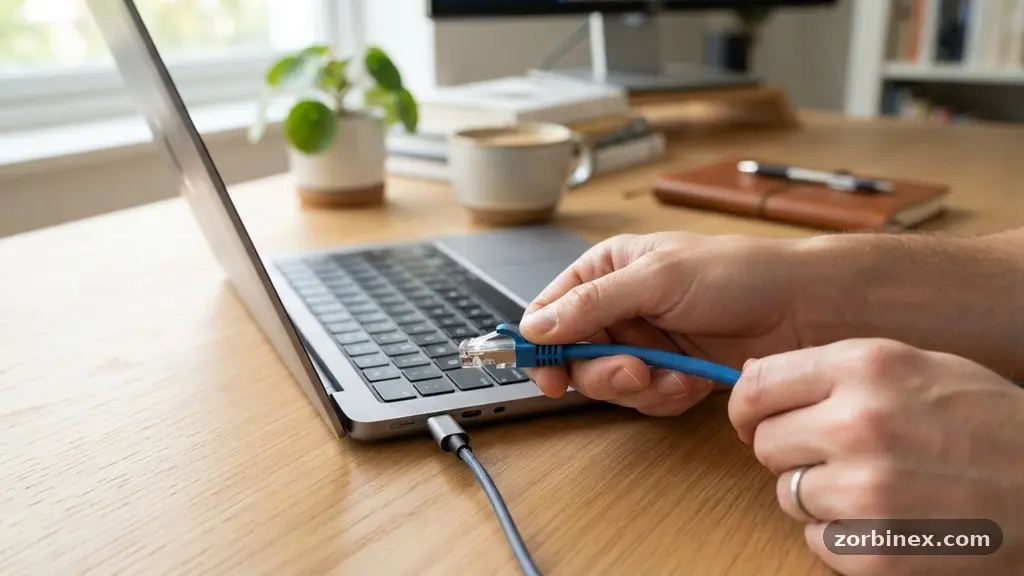
The most effective way to eliminate instability is to move away from wireless signals entirely. Wi-Fi is susceptible to environmental factors, including physical walls, household appliances, and interference from neighboring networks. An Ethernet cable provides a dedicated, direct path between your device and your router, which drastically reduces the likelihood of signal drops.
When you plug in an Ethernet cable, you bypass the volatility of radio waves. This physical link ensures that your device receives the full capacity of your available bandwidth without the common fluctuations found in wireless environments. Even if your internet plan is slow, a stable connection is always superior to a fast but intermittent one.
If your laptop lacks an Ethernet port, consider investing in a high-quality USB-to-Ethernet adapter. These devices are generally inexpensive and provide a reliable bridge for your hardware. Once connected, your computer will prioritize this wired path over any stored Wi-Fi networks, giving you an immediate boost in consistency during video calls.
Addressing Network Congestion and Background Sync
Network congestion occurs when too many applications compete for your limited upload and download capacity simultaneously. Even if you aren’t actively using other programs, many applications perform background sync operations that consume data in the background. Cloud storage services, software updates, and photo backups are notorious for silently eating up your available bandwidth.
Before starting a critical meeting, check your system tray or task manager to see what is running. Closing unnecessary tabs in your browser is equally important, as each active page can trigger background data transfers. If you share your home network with others, politely ask them to avoid streaming high-definition video or downloading large files while you are on your call.
You can also check your current performance by running an upload speed test through a tool like the one provided by Ookla. Knowing your true upload capacity helps you understand if your connection is physically capable of supporting the video quality you are attempting to transmit. If your upload speed is consistently below 2 Mbps, you will almost certainly need to lower your video quality settings to maintain a stable connection.
Optimizing Router Settings and Firmware
Your router is the gateway for all your home traffic, and its configuration plays a significant role in call quality. Ensuring your router firmware is up to date is a simple but vital step. Manufacturers frequently release updates that improve how the device handles traffic and manages connections, which can resolve bugs that cause intermittent drops.
Many modern routers offer QoS settings, or Quality of Service, which allow you to prioritize certain types of traffic over others. By accessing your router’s administrative panel, you can instruct it to give preference to video conferencing applications like Zoom, Microsoft Teams, or Google Meet. This ensures that even when the network is busy, your voice and video data packets are pushed to the front of the line.
You should also be wary of Wi-Fi signal interference caused by other electronic devices. Microwaves, cordless phones, and baby monitors can broadcast on the same frequencies as your router, leading to dropped packets. If possible, move your workstation closer to the router or switch your Wi-Fi to the 5GHz band, which is less crowded and offers higher performance than the standard 2.4GHz band.
Managing Application-Level Video Settings
Video conferencing platforms are designed to be “smart,” but they often default to the highest possible quality regardless of your connection strength. Manually overriding these defaults is one of the most effective ways to maintain a stable link. By reducing your output, you demand less from your internet service, which directly combats issues like jitter and latency.
Most platforms allow you to adjust your resolution and frame rate within the settings menu. If you are struggling, try locking your video to 720p or even 480p. Lowering the frame rate reduction settings can also help; while the video might look slightly less fluid, the audio will remain clear and the connection will stay stable.
The following table summarizes recommended adjustments for various connection scenarios:
| Connection Type | Recommended Resolution | Frame Rate Goal |
|---|---|---|
| Very Weak (<1 Mbps) | Audio Only / 360p | 15 fps |
| Moderate (1-3 Mbps) | 480p | 20 fps |
| Stable (3-5 Mbps) | 720p | 30 fps |
Understanding Packet Loss and Jitter
When data travels across the internet, it is broken into small packets that are reassembled at their destination. Packet loss occurs when some of these pieces fail to arrive, causing your video to freeze or your audio to sound robotic. Jitter is the variation in the delay between these packets, which can cause your conversation to sound distorted or out of sync.
These issues are often symptoms of an overburdened network or poor signal quality. If you notice these problems, the first step is to reduce the overall load on your connection. Stop all large downloads, pause cloud backups, and ensure that no other devices in your home are streaming high-definition content.
If you are using a VPN, you might be adding unnecessary complexity to your connection. VPN overhead can significantly increase latency and jitter because your data has to be encrypted, routed through a secondary server, and then decrypted. If you don’t strictly require a VPN for security reasons, disabling it during your call can provide a noticeable improvement in stability.
Leveraging Video Compression Codecs
Modern video conferencing software relies on sophisticated video compression codecs to transmit your image and voice efficiently. These algorithms determine how much data is needed to represent a frame of video. Some platforms are more efficient than others at adapting to poor connections, automatically switching to a lighter compression method when they detect network strain.
If you have the choice of which platform to use, test a few to see which performs best on your specific connection. Some applications prioritize audio quality over video, which is ideal if you have a weak signal. If you find that a specific app is constantly failing, try using a web-based version of the service through a browser instead of the desktop application.
Sometimes, the desktop application may be hung up on a cache issue or a memory-intensive process. A web-based client often uses fewer system resources and can be more forgiving of fluctuating network conditions. Always keep your software updated, as developers frequently refine these codecs to better handle low-bandwidth scenarios.
Frequently Asked Questions
Why does my video freeze even when my speed test shows high numbers?
Speed tests measure your peak capacity, but they don’t always reflect your connection’s stability over time. You might have high download speed but suffer from high jitter or periodic packet loss, which causes the video to freeze even if the raw data capacity is technically sufficient.
Does changing my Wi-Fi channel help with call quality?
Yes, especially if you live in a dense residential area. Many routers are set to “Auto” channel selection, but you can manually switch your router to a less congested channel using a Wi-Fi analyzer app to see which frequencies in your area are the least crowded.
Is it better to use a phone or a computer for a video call on a weak connection?
Smartphones often have better internal antennas for cellular data than laptops do for Wi-Fi. If your home broadband is struggling, switching to a cellular hotspot on your phone might provide a more consistent, albeit potentially more expensive, connection for your call.
What is the most important setting to change if my call keeps dropping?
The most important setting is your video resolution. Lowering your resolution from 1080p to 720p or 480p reduces the amount of data your computer needs to upload every second by a massive margin, which is usually enough to stabilize a connection that is otherwise struggling.
Can I use my router to prioritize my work computer?
Yes, most modern routers have a feature called Quality of Service (QoS). You can log into your router’s web interface, locate the QoS settings, and assign a higher priority to your computer’s MAC address to ensure it gets the bandwidth it needs during your calls.
Maintaining Connection Consistency
Achieving reliability requires a combination of hardware fixes and smart configuration choices. By hardwiring your device, managing background data, and proactively lowering your video quality, you can navigate even the most challenging network environments. Practical ways to make video calls more reliable on weak connections often involve small, incremental changes that add up to a much more stable experience.
Start by auditing your local network environment, including your router position and background traffic. Once you have optimized your hardware, move to the software settings within your preferred conferencing apps to ensure you aren’t asking for more data than your connection can handle.
By staying mindful of these factors, you can conduct your meetings with confidence, knowing you have taken the necessary steps to prevent common connectivity failures. Consistency is the goal, and with these adjustments, you can achieve it.