Creating a Reliable Backup Routine for Everyday Computer Files is the single most effective way to protect your digital life from hardware failure, accidental deletion, or malicious software. Most people only realize the value of their data once it has vanished, but implementing a consistent system ensures your photos, documents, and creative projects remain safe. By combining local storage with remote solutions, you build a safety net that survives almost any disaster.
This approach requires minimal ongoing effort once the initial setup is complete, providing peace of mind through automation and redundancy. Following a structured plan is the best way to ensure your digital assets are preserved for years to come.
The 3-2-1 Rule for Data Safety
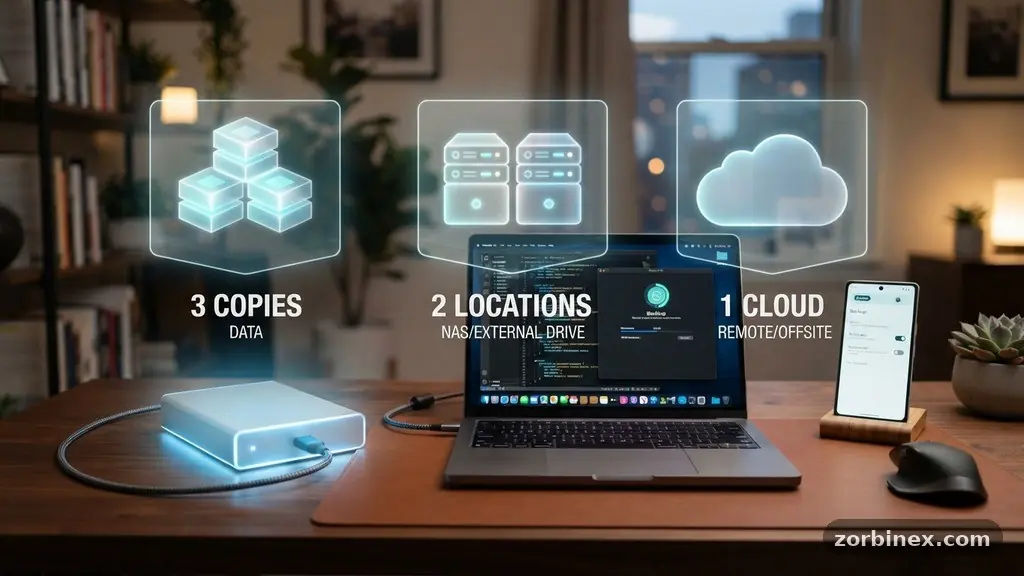
The gold standard for data protection is the 3-2-1 strategy. This framework dictates that you should keep three copies of your data, stored on two different types of media, with one copy held in an off-site location. This methodology minimizes the risk of losing everything to a single event like a house fire, theft, or a localized power surge.
Many users believe that saving a file to a folder that syncs with the cloud is enough, but this is technically just one copy. If a file is corrupted or accidentally deleted, that error often syncs instantly to your cloud account, destroying your only backup.
By maintaining a local copy on your primary computer and a second copy on an external hard drive, you guard against immediate system failures. The third copy, located off-site, protects you against catastrophic physical damage to your home or office. This off-site copy is typically handled by cloud storage services, which act as a final barrier against data loss.
You should view these three layers as independent pillars of your defense. If one fails, the others remain ready to restore your digital environment without significant downtime.
Selecting the Right Local Backup Hardware
Your first line of defense is a local backup, which allows for rapid recovery of large files without relying on an internet connection. An external hard drive is the most common and cost-effective tool for this purpose. When shopping for these drives, prioritize capacity—aim for at least double the size of your primary internal storage to allow for historical versioning.
Solid State Drives (SSDs) are faster and more durable than traditional mechanical Hard Disk Drives (HDDs), making them ideal for modern workflows. However, HDDs still offer a better price-per-gigabyte ratio for long-term cold storage.
For users with multiple devices or a large collection of media, a Network Attached Storage (NAS) device is a superior upgrade. A NAS functions like a private cloud inside your home, connecting to your router so every computer on your network can back up to it automatically. These units often support RAID configurations, which allow the system to continue functioning even if one internal drive fails.
This level of hardware redundancy is an excellent way to handle large volumes of data without manually plugging in cables. Whether you choose a simple USB drive or a complex NAS, ensure the hardware is physically separated from your computer whenever possible to prevent damage from power fluctuations.
Leveraging Cloud Storage Services
Cloud storage services are essential for off-site protection, ensuring that your data remains accessible even if your primary hardware is stolen or destroyed. These services operate by encrypting your files locally before uploading them to secure data centers.
This process provides a crucial layer of ransomware protection, as many providers keep historical versions of your files that you can revert to if your local system becomes encrypted by malware. Choosing a service with strong privacy features is vital, especially if you store sensitive financial or personal documents.
When setting up your cloud account, consider how the software integrates with your operating system. Some services act as a “mirror,” syncing every change in real-time, while others operate as a traditional backup vault. For everyday files, a hybrid approach often works best.
Use a synchronization service for active projects that you need to access from multiple devices, and a dedicated backup service for your entire system image. The latter is far more efficient for disaster recovery, as it captures your entire operating system, installed programs, and settings in one package.
Automating Your Backup Workflow
Manual backups are rarely successful in the long run because they rely on human memory. Automated backup software removes the friction from this process by running in the background, silently copying your changes without interrupting your work. Most operating systems include built-in tools like Time Machine for macOS or File History for Windows, both of which are highly capable.
These tools are designed to perform incremental backups, meaning they only copy the data that has changed since the last session. This saves time and bandwidth, allowing for frequent updates without slowing down your computer.
For more granular control, third-party software offers advanced features like disk imaging and custom scheduling. Disk imaging creates an exact clone of your hard drive, which is invaluable if you need to replace a failed drive and want to pick up exactly where you left off. When configuring your software, set it to run at least once per day.
If you work with critical, time-sensitive files, you might even set the software to run every hour. The goal is to make the process invisible, so you never have to think about whether your latest work is protected. You can learn more about data management and security best practices from the Cybersecurity & Infrastructure Security Agency guide on backups.
Managing Data Integrity and Versions
Data integrity verification is the process of ensuring that the files in your backup are actually readable and not corrupted. Over time, files can suffer from “bit rot,” where data slowly degrades on physical media. Regularly testing your backups by attempting to restore a random selection of files is the only way to be certain your system works.
Set a calendar reminder to perform a test restore every three to six months. If your backup software provides a verification report, make sure to review it occasionally for any flagged errors.
Version history is another critical feature that protects you from your own mistakes. If you overwrite an important document or accidentally delete a paragraph, versioning allows you to roll back to a previous state of that file. Ensure your backup software is configured to keep at least 30 to 90 days of history.
This prevents the common scenario where a corrupted file is backed up and immediately overwrites the healthy version. By keeping multiple versions, you gain the flexibility to recover from errors made days, weeks, or even months ago.
Comparing Backup Solutions
Different methods of storage offer varying levels of speed, cost, and security. Choosing the right combination depends on your budget and how much data you generate on a daily basis.
| Backup Method | Best For | Primary Benefit | Weakness |
|---|---|---|---|
| External HDD | Large Archives | Low cost per TB | Mechanical failure risk |
| External SSD | Active Work | Extreme speed | Higher cost |
| Cloud Storage | Off-site Security | Disaster recovery | Requires internet |
| NAS Device | Multi-user Homes | Network-wide access | Complex setup |
Key Considerations for Security
Encryption is non-negotiable when you are storing your personal data on external drives or in the cloud. If your backup drive is stolen, encryption ensures that your private photos and documents remain unreadable to anyone else. Many modern external drives come with built-in hardware encryption that you can enable with a password.
For cloud storage, look for providers that offer “zero-knowledge” encryption, which means the company itself cannot access your files. This is the most secure way to manage your digital footprint, as it keeps the decryption keys entirely in your hands.
Another aspect of security is physical safety. If you keep an external drive in your desk drawer, consider what would happen if there were a fire or a flood. Storing a second backup in a different location, such as a fireproof safe or a relative’s house, adds a layer of physical resilience.
Some people also utilize “cold storage” strategies, where they rotate two different external drives—one connected to the computer and one kept in a safe location. This simple rotation schedule significantly reduces the likelihood that all your backups will be destroyed simultaneously.
Frequently Asked Questions
How often should I perform a backup?
For most users, an automated daily backup is the perfect balance. If you work with highly volatile data that changes every hour, you should configure your software to run more frequently. The best backup routine is the one that happens without you needing to remember to trigger it.
Do I really need both cloud and local backups?
Yes, because each serves a different purpose. Local backups are incredibly fast for restoring large amounts of data, while cloud backups are your only protection against disasters that affect your home or office, such as fire, flood, or theft. Relying on only one method leaves a significant gap in your safety net.
What is the difference between syncing and backing up?
Syncing creates an identical mirror of your files on two different devices, meaning a deletion on one is a deletion on the other. A true backup creates a separate, independent copy that retains older versions of files even if you delete the original. Always ensure you have a dedicated backup process in addition to any syncing services you use.
How do I know if my backup is actually working?
The only way to be 100% sure is to perform a test restore. Once a quarter, try to open a file or folder from your backup drive or cloud interface to ensure it is intact. If you cannot open the file, your backup is not reliable, and you need to troubleshoot your software settings immediately.
Should I encrypt my backup drives?
Absolutely, especially if you store sensitive information like tax returns or personal identity documents. If your drive is lost or stolen, encryption is the only thing standing between your private data and an unauthorized person. Most operating systems have built-in tools like BitLocker or FileVault that make this process straightforward.
Establishing Your Routine
Creating a Reliable Backup Routine for Everyday Computer Files is an investment that pays for itself the moment a drive fails or a file goes missing. By following the 3-2-1 rule and embracing automation, you move from a state of vulnerability to one of genuine security. Start today by purchasing a high-capacity external drive and setting up an account with a reputable cloud service.
Once the software is running in the background, you can return to your work with the confidence that your digital legacy is protected. Consistency is the final ingredient; keep your hardware updated and verify your backups periodically to ensure your digital life remains safe and sound.