Making the decision to add new software to your computer requires a careful approach to security. When you need to determine what to check before installing an unknown desktop application, you are essentially performing a quick audit of the developer’s reputation and the file’s integrity. Ignoring these steps can expose your system to unnecessary risks, ranging from intrusive adware to malicious code.
By verifying the source and scanning the installer, you protect your personal data and maintain your operating system’s health. This article provides the essential steps to help you evaluate potential risks, ensuring that every piece of software you add to your machine is safe, verified, and worthy of your trust.
Verifying the Source and Developer Reputation
The first line of defense is identifying where the software originated. Legitimate applications are almost always hosted on the developer’s official website or a reputable distribution platform.
If you found the software through a random pop-up ad or an obscure forum link, the risk of downloading a compromised file increases significantly. Always look for a clear, professional web presence that includes a history of updates and a transparent team behind the project.
Check for a clear privacy policy that explains how the company handles your data. Developers who are serious about their software will explicitly state their commitment to user security. If a website looks outdated, contains broken links, or lacks basic contact information, it is a major red flag.
You should also search for independent reviews or mentions of the software on trusted technology forums. If nobody is talking about it, or if the only mentions are suspiciously positive, proceed with extreme caution.
Using VirusTotal for File Integrity Checks
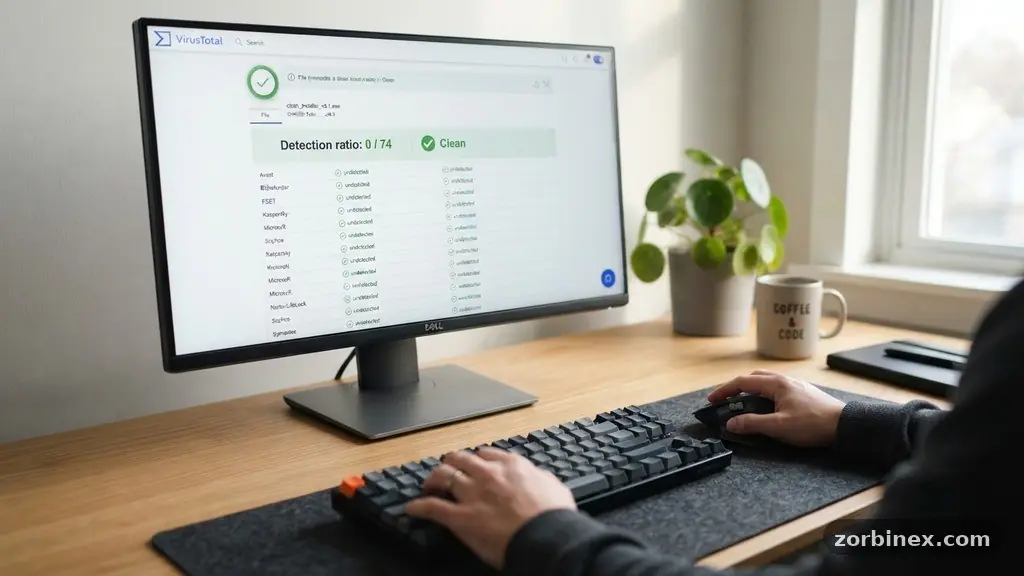
Once you have the file, do not run it immediately. A powerful tool for this purpose is VirusTotal, which allows you to upload a file to be scanned by dozens of different antivirus engines simultaneously.
This service is a gold standard for performing a quick malware analysis on executable installers. If a file is malicious, it is highly likely that at least one of the many security vendors on the platform will flag it.
Keep in mind that false positives can occur, especially with new or niche software. If only one or two obscure engines flag the file, investigate the specific warnings they provide. However, if multiple reputable vendors mark the file as a threat, delete it immediately.
This verification step takes less than a minute but provides a massive boost to your system’s safety. It is the most effective way to identify hidden threats before they gain a foothold on your hard drive.
Understanding Digital Signatures and Hashes
Legitimate Windows executables often come with a digital signature that identifies the publisher. To check this, right-click the file, select properties, and look for a tab labeled “Digital Signatures.”
If this tab exists, verify that the signer is a known entity and that the signature is valid. An unsigned installer is not necessarily malicious, but it lacks the accountability that a verified signature provides.
Another technical check involves performing a hash verification. A cryptographic hash acts as a digital fingerprint for a file. If the developer provides a SHA-256 hash on their download page, you can compare it to the hash of your downloaded file.
If they do not match, the file has been tampered with or corrupted during transit. This simple comparison ensures that you are running exactly what the developer intended you to install, protecting you from man-in-the-middle attacks.
Isolating Installations in a Sandbox
If you are still uncertain about the safety of an application, consider running it in a sandbox environment. A sandbox is a restricted area of your operating system where the application can run without having access to your core system files or personal data.
If the software behaves maliciously, it only affects the isolated environment, leaving your main OS untouched. Windows Sandbox is a built-in feature for many versions of Windows 10 and 11 that makes this process straightforward.
For those who want even more control, using a virtual machine is an excellent alternative. By installing the software on a virtual machine, you create a complete, separate instance of an operating system.
You can monitor its behavior, check if it attempts to connect to suspicious servers, and see what telemetry data it tries to harvest. Once you are satisfied that the application is benign, you can then choose to install it on your primary machine.
Reviewing Administrator Privileges
Many installers request administrator privileges as a matter of course, but you should ask yourself if the application truly needs them. An installer that asks for full system access for a simple calculator app is behaving suspiciously.
If the prompt appears, pay attention to exactly what the software is trying to modify. Generally, software should only request elevated rights if it needs to register system services or install drivers.
If you are concerned about what an application might do, consider running it as a standard user. If the installer fails because it lacks permissions, that is a strong indicator of its requirements.
Be wary of applications that try to install “helper” tools or browser extensions alongside the main program. These are often where unwanted adware or tracking scripts hide, turning a useful tool into a nuisance.
Comparing Installation Risks
Understanding the relative risks of different software sources helps you make better decisions. The table below outlines how common installation scenarios differ in terms of inherent risk profiles.
| Source Type | Risk Level | Verification Ease |
|---|---|---|
| Official Developer Website | Low | High |
| Open Source Repository | Low to Moderate | High |
| Third-Party Download Sites | High | Low |
| Email Attachments | Critical | None |
As shown in the table, the source of your software is the most significant factor in your overall risk. Official sites and verified open-source repositories allow for community oversight and direct developer accountability.
Conversely, third-party sites often wrap legitimate installers in their own custom, ad-supported installers. Always prioritize the primary source over any aggregate hosting service to maintain your software supply chain integrity.
Steps to Take Before Execution
Before you finalize the installation, follow this checklist to ensure you haven’t missed a crucial safety step. These actions help mitigate the fallout if something goes wrong during the installation process.
- Create a system restore point so you can roll back changes if the software causes stability issues.
- Ensure your antivirus software is active and fully updated to catch potential threats in real-time.
- Disconnect from the internet if the application does not strictly require an online connection for the initial setup.
- Read the EULA briefly to ensure there are no clauses regarding the collection of sensitive personal data or telemetry data.
- Check the file size; if it is unusually small for what the software claims to be, it might be a dropper for a larger payload.
These steps provide a layered security approach. Even if one check fails to catch a sophisticated threat, the combination of a restore point and active monitoring gives you a path to recovery.
Never rush the installation process just to get to the functionality you need. A few extra minutes of verification are a small price to pay for a secure and stable computing environment.
Common Questions About Software Safety
Is it safe to install software from open source repositories?
Generally, yes. Major platforms like GitHub allow you to view the source code, which means the community can audit it for malicious behavior. However, always check the release notes and ensure the binaries provided match the source code provided in the repository.
What should I do if my antivirus flags a file?
Do not ignore the warning. If multiple engines on a scanner like VirusTotal detect it, delete the file immediately. If it is only one engine, search for the name of the detection to see if other users report it as a false positive.
Do I really need to create a system restore point?
Yes, especially for software that makes deep changes to your system. A restore point is a safety net that can save you hours of troubleshooting if an installer breaks your registry or conflicts with other drivers.
What are telemetry data and why should I care?
Telemetry is data about how you use an application, which is often sent back to the developer. While some of it is used for debugging, some apps collect excessive personal information. Checking the privacy policy helps you understand what is being collected and whether you are comfortable with it.
Why do installers ask for administrator privileges?
They need these rights to write files to protected system folders or modify registry keys. Only grant these rights if you trust the software developer completely and have verified the integrity of the installer file.
Taking Control of Your Security
To wrap up, knowing what to check before installing an unknown desktop application is a skill that evolves with your experience. By consistently verifying the source, checking digital signatures, and using tools like sandboxes, you build a habit of safety that protects your digital life. Remember that your computer is your personal space; you have the right to inspect everything that enters it.
If an application feels wrong or the developer seems untrustworthy, trust your gut and walk away. There is almost always a safer, more transparent alternative available for any task you need to accomplish. Start applying these checks today, and you will find that a cautious approach is the best way to maintain a clean, high-performing system for years to come.