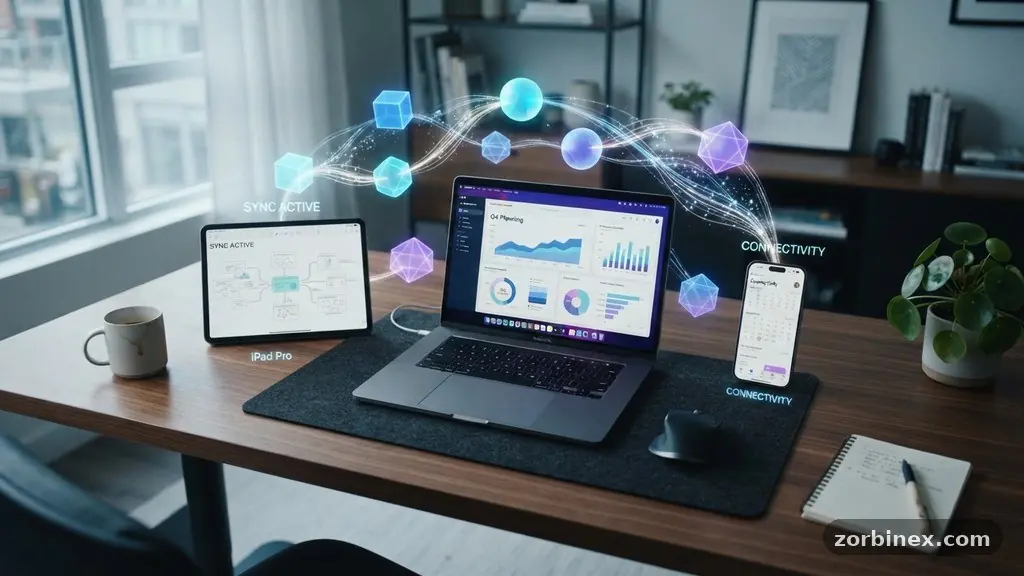
Keeping your important files accessible across multiple devices ensures that your digital life remains productive and stress-free. Whether you are switching between a desktop computer, a tablet, or a smartphone, having your documents, photos, and projects ready to go prevents frustrating data silos. You can achieve this by leveraging modern cloud infrastructure or local networking tools tailored to your specific workflow.
By understanding how these systems interact, you regain control over your data rather than wondering which device holds the latest version of a file. This approach transforms how you interact with your digital assets, making them available whenever and wherever you need them most.
The Foundation of Cloud Synchronization
The most direct way to ensure your files remain available everywhere is through cloud storage services. These platforms act as a central hub, holding your data on remote servers while pushing updates to any linked device.
When you save a file to a designated folder on your laptop, the software automatically uploads the changes. Within seconds, your tablet or phone reflects that same updated file without any manual intervention.
Reliable services often include a dedicated cloud drive that integrates directly into your operating system’s file explorer. This makes the cloud storage feel like just another folder on your hard drive, reducing the friction of moving files around.
Many users prefer this method because it handles the heavy lifting of data transfer in the background. You do not need to worry about cables or manual transfers; the software manages the state of your files across all your hardware.
Consistency is the primary benefit of using a unified sync client. If you edit a spreadsheet on your work computer, the cloud sync client detects the modification and updates the master copy in the cloud.
Consequently, when you open the application on your mobile device, the most recent version is already waiting for you. This creates a fluid transition between different working environments throughout the day.
Choosing the Right Storage Architecture
Not all data needs to live in the public cloud, and for some, local network sharing offers a more private alternative. If you have large media collections or sensitive documents, a Network Attached Storage (NAS) device might be the superior choice.
A NAS functions as a private server within your home or office, connecting directly to your router. You can access these files from any device on your local Wi-Fi, keeping your data under your physical control.
Deciding between cloud storage and local hardware often comes down to your specific needs for privacy versus remote access. Cloud services are excellent for portability, as they allow you to reach your documents even when you are away from home.
Conversely, a NAS provides massive storage capacity without recurring monthly subscription fees. Many power users opt for a hybrid model, keeping daily working files in the cloud while archiving large backups on a local NAS.
Consider the following table when evaluating your storage strategy to ensure you select the right balance of convenience and security.
| Storage Type | Primary Benefit | Best For |
|---|---|---|
| Cloud Storage | Universal Access | Documents, notes, and active projects |
| NAS Device | High Capacity | Media libraries and large backups |
| External Drive | Air-gapped Security | Sensitive offline archives |
Managing Version History and Data Redundancy
One of the greatest risks when moving files between devices is accidental overwriting. Modern cloud providers solve this by maintaining a version history, which logs every save you make to a file.
If you accidentally delete a paragraph or corrupt a spreadsheet, you can simply roll back to a previous state. This feature acts as a safety net that protects your work from human error.
Data redundancy is equally important to ensure you never lose access to your digital life. Redundancy means having multiple copies of your data stored in distinct locations.
If your primary cloud service experiences an outage or your local hard drive fails, your information remains safe elsewhere. Automating these backups is the best way to maintain peace of mind without needing to remember to copy files manually.
You should establish a routine that mirrors your files to a secondary location, such as an encrypted external hard drive or a different cloud provider. This practice, often referred to as the 3-2-1 backup rule, suggests keeping three copies of data on two different media types, with one copy offsite. Following this logic ensures that keeping your important files accessible across multiple devices remains a reality even during unexpected hardware failures.
Optimizing File Permissions and Sharing
When you collaborate with others or use different devices for different tasks, file permissions become a crucial aspect of your security. You must ensure that only authorized devices and users have access to your sensitive information.
Most platforms allow you to set read-only or read-write access for specific folders or individual files. This prevents accidental changes while still allowing you to view your documents on a secondary device like a guest tablet.
Understanding how to manage these permissions prevents the common mistake of oversharing your data. If you are syncing work files to a personal device, you might want to create a specific restricted folder.
This keeps your professional projects separate from personal photos, ensuring that a security breach on one device does not expose your entire digital life. Carefully assigning these roles is a fundamental step in maintaining organizational hygiene across your platforms.
Encryption adds another layer of protection, especially when using cloud services. Look for platforms that offer end-to-end encryption, which ensures that only you can see the contents of your files.
Even if a service provider’s server were compromised, your data would remain unreadable to unauthorized parties. This is particularly vital for financial records, tax documents, or private personal journals that you need to access from multiple locations.
Handling Bandwidth and Offline Access
Working across multiple devices often means moving between stable office internet and spotty cellular data. Effective file management requires a strategy for handling these fluctuations in connectivity.
Most cloud clients allow you to designate specific files as “available offline,” which downloads a local copy to your device. This ensures that you can continue working even when you are on a plane or in an area with poor reception.
When you regain an internet connection, the software automatically synchronizes your local changes with the cloud. You should be mindful of bandwidth throttling, which can occur if you have too many large files syncing at once.
If your internet connection is slow, prioritize syncing the documents you need immediately rather than letting the system update your entire photo library. Managing these settings prevents your devices from becoming sluggish during heavy sync operations.
You can learn more about managing data transfer and network health by reading the official NIST cybersecurity resources for best practices on securing information. Their guidelines provide a framework for how data should be handled in various environments. Applying these professional standards to your personal file management will make your workflow significantly more stable and secure.
Essential Tools for Consistent Access
To maintain a truly synchronized environment, you need to select the right software that fits your hardware ecosystem. If you use a mix of Apple, Windows, and Android devices, you need cross-platform accessibility.
Some services are built natively into one operating system, while others offer robust applications for every platform. Testing these clients on all your devices is the only way to ensure the experience is consistent.
Automated backups are the backbone of any reliable system. You should avoid manual file movement whenever possible, as it is prone to error and forgetfulness.
Instead, configure your cloud sync clients to monitor your “Documents” and “Desktop” folders continuously. This ensures that every time you click save, your data is already being prepared for distribution to your other linked hardware.
Consider these essential features when choosing your synchronization software:
- Automatic conflict resolution when a file is edited on two devices simultaneously.
- Selective sync, which allows you to save space on devices with smaller storage capacities.
- Real-time notifications that inform you when a file has been successfully uploaded or updated.
- Cross-platform support for both mobile and desktop operating systems.
- Robust search functionality that indexes your content across all synced folders.
Troubleshooting Common Synchronization Issues
Even the best systems encounter occasional hiccups. If you notice that a file is not appearing on your phone, the first step is to check your internet connection and verify that your cloud client is running.
Sometimes, the application may have paused syncing to save battery or data, requiring you to resume the process manually. Always check the status icon in your system tray or menu bar to see if the sync is active.
File name conflicts are another common issue that occurs when you rename a file on two devices at the same time. Most systems will create a duplicate file with a timestamp in the name to prevent data loss.
You should periodically review your cloud folders to identify and merge these duplicates. Keeping your file structure organized and avoiding overly long file paths will significantly reduce the likelihood of these errors.
If you find that files are consistently failing to sync, consider clearing the application cache or re-authenticating your account. Sometimes, a corrupted configuration file can prevent the software from communicating correctly with the server.
A simple sign-out and sign-in process often resolves these persistent communication issues. By staying proactive with your maintenance, you keep your important files accessible across multiple devices without the need for constant troubleshooting.
Frequently Asked Questions
How can I make sure my files are secure while they are in the cloud?
You should enable two-factor authentication on all your cloud accounts to prevent unauthorized access. Additionally, choosing a provider that offers end-to-end encryption ensures that your data remains private even from the service provider itself.
What should I do if I run out of storage space on my mobile device?
Use the “selective sync” or “files on demand” feature offered by most cloud storage providers. This allows you to see all your files in the folder structure without downloading them to your device until you actually open them.
Is a NAS better than a cloud service for personal use?
A NAS is better if you have large amounts of data and want to avoid monthly fees, but it requires more technical maintenance. A cloud service is generally more convenient for casual users who need access to their files from anywhere in the world.
How do I handle files that are too large for standard cloud uploads?
For very large files, such as raw video footage, consider using a high-capacity external drive or a specialized large-file transfer service. You might also want to compress the files into a single archive to make the upload process more efficient.
Can I sync my files across different operating systems like Windows and macOS?
Yes, most modern cloud storage services are designed to be platform-agnostic. As long as you install the official cloud sync client for each operating system, your files will sync seamlessly between your different devices.
Final Thoughts on Digital Continuity
Maintaining a consistent digital environment is a skill that pays dividends in saved time and reduced anxiety. By setting up a robust system for keeping your important files accessible across multiple devices, you ensure that your work is always at your fingertips. Whether you rely on the cloud for its portability or a local network for its capacity, the key is automation and regular maintenance.
Start by auditing your current storage habits and identifying which files need to be available on every device. Once you have a unified strategy in place, you will find that moving between your computer, tablet, and phone becomes a natural part of your day. Embracing these tools allows you to focus on your actual tasks rather than managing your data infrastructure.