Setting up a fresh machine can feel like a daunting chore, yet making a New Computer Ready for Everyday Work is the most effective way to ensure long-term stability and performance. By taking a few hours to configure your hardware and software correctly now, you avoid the common frustrations of slow boot times, missing files, or security vulnerabilities later on.
This process isn’t just about clicking through setup screens; it’s about creating a focused, efficient environment tailored to your specific daily tasks. Whether you are a creative professional, a student, or a remote worker, these foundational steps will transform a generic device into a powerful, reliable tool for your professional life.
Prioritizing Essential Operating System Updates
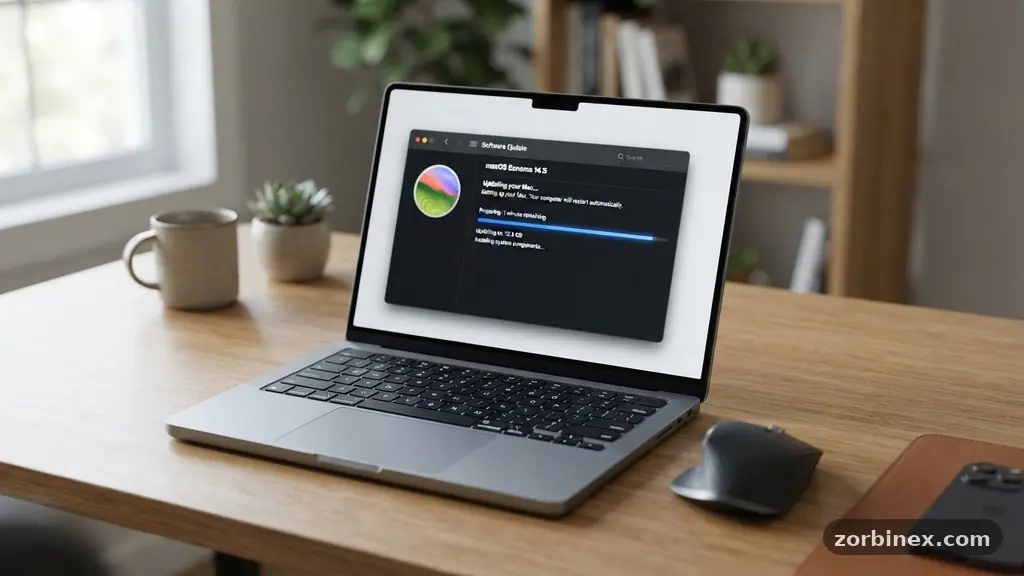
The very first step in making a New Computer Ready for Everyday Work is to ensure your operating system is fully current. Manufacturers often ship devices with software versions that are several weeks or even months old, meaning they lack the latest security patches and performance improvements.
Navigate to the Windows Update menu on a PC or the macOS System Settings on a Mac to check for pending downloads. These updates frequently include critical fixes for vulnerabilities that could otherwise compromise your data.
Do not be tempted to skip these updates in favor of starting your work immediately. An unpatched system is significantly more susceptible to malware, and ignoring these notifications often leads to disruptive, automatic restarts during your most productive hours.
Once the initial batch of updates is installed, restart your machine to allow the changes to take effect. It is common for a secondary check to reveal additional, smaller updates that were previously hidden behind the primary firmware or security patches.
Managing User Accounts and Permissions
Security starts at the account level, so you should establish a clear structure for how you access your machine. While it might be tempting to run your daily tasks as an administrator, this is a dangerous practice that leaves your system vulnerable to malicious software.
Instead, create a standard user account for your daily activities and reserve the administrative privileges account for installing software or changing system-wide settings. This separation ensures that even if you accidentally download a problematic file, it lacks the permissions necessary to make deep, system-level changes.
Consider the following hierarchy for your user accounts to ensure maximum security:
- Main User Account: The standard account for daily tasks with limited permissions.
- Administrative Account: A secondary account used only for system maintenance and installations.
- Guest Account: A restricted profile for visitors that prevents them from accessing your personal data.
- Recovery Account: A local-only account with a complex password for emergency access.
Efficient Bloatware Removal
Most consumer-grade computers arrive with pre-installed software that you likely do not need. Often referred to as bloatware, these applications consume valuable system resources like RAM and processing power while running in the background.
Open your list of installed programs and systematically remove anything that didn’t come directly from your operating system provider or your own necessary professional tools. This simple act of decluttering can significantly improve your machine’s responsiveness and battery life.
Be cautious when identifying what to remove, as some pre-installed software might be necessary for specific hardware features like hotkeys or audio drivers. If you are uncertain about a specific entry, perform a quick search to verify its purpose before uninstalling.
For a deeper look at managing your system resources, you can consult the official Microsoft support documentation regarding software management and performance optimization. Removing unnecessary trial versions of antivirus software or promotional suites is almost always a safe and beneficial move.
Establishing a Robust File Backup Strategy
Data loss is a risk that every professional must mitigate from day one. Relying solely on your internal drive is a recipe for disaster, as hardware failures are unpredictable and often catastrophic.
A comprehensive file backup strategy should include at least two distinct layers: a local backup and a cloud-based solution. Invest in a reliable external hard drive for local backups, which allows you to restore large amounts of data quickly without relying on internet speeds.
Cloud storage synchronization is your second line of defense, ensuring that your work is accessible from any device. Services like OneDrive, iCloud, or Google Drive provide excellent integration with modern operating systems, allowing you to mirror your folders automatically.
Configure these services to sync your primary work folders immediately. This setup provides peace of mind, knowing that even if your device is lost or damaged, your essential files remain safe and recoverable.
Optimizing Your Software Environment
Your machine is only as useful as the tools you have installed, but installing everything at once can lead to a cluttered and sluggish system. Begin by selecting a reliable web browser installation that supports your workflow, ensuring you have access to your bookmarks and extensions across devices.
Once the browser is set up, prioritize installing a trusted password manager. Using a password manager is essential for maintaining unique, secure credentials for every professional service you use, which is a major component of modern digital hygiene.
After your core productivity tools are in place, focus on driver installation for any specialized hardware you use, such as external monitors, printers, or drawing tablets. Manufacturers often provide dedicated software for these devices that unlocks advanced features not available through generic drivers.
Keep these applications updated, but avoid installing unnecessary “helper” apps that manufacturers often bundle with their hardware. A clean, focused software environment will keep your machine running smoothly for years to come.
Comparing Storage and Partitioning Options
Managing how your storage space is organized can have a lasting impact on your productivity. While modern solid-state drives are fast, partitioning your drive can help you keep your system files separate from your personal data. This separation makes it easier to perform a system reset or reinstall the operating system if you ever encounter severe software issues, as you can wipe the system partition without touching your documents.
The following table compares the typical approaches to storage organization for different types of users:
| User Profile | Partition Strategy | Primary Storage Benefit |
|---|---|---|
| Casual User | Single Partition | Simplicity and maximum free space. |
| Professional Creator | Dual Partition | Isolation of media assets from system files. |
| IT Professional | Multi-Partition | Testing environments and OS redundancy. |
Addressing Common Setup Questions
Should I install third-party security software immediately?
Most modern operating systems come with built-in security software that is highly effective for the average user. Adding extra layers of protection is often unnecessary and can sometimes conflict with system updates. Focus on safe browsing habits and regular updates rather than relying on third-party suites.
How often should I run system updates?
You should set your machine to check for updates automatically at least once a week. If you work in a high-security environment, checking for updates daily or as soon as they are released is recommended to patch potential exploits.
Is it necessary to partition my drive on a new computer?
For the average user, partitioning is not strictly necessary and can complicate file management. However, for power users who frequently handle large files or test software, it provides a valuable layer of data protection and organizational clarity.
How do I know which pre-installed apps are bloatware?
Look for applications you didn’t download, such as trial versions of antivirus software, promotional games, or manufacturer-branded media players. If you don’t recognize the name of the app and it isn’t a core system component, it is likely bloatware.
Can I move my files from an old computer to a new one easily?
Yes, using an external hard drive or cloud synchronization is the standard method. Simply copy your user profile data to the external drive, then import it into the corresponding folders on your new machine.
Final Thoughts on System Readiness
Taking the time to properly configure your machine is an investment in your own efficiency. By methodically addressing security, storage, and software, you ensure that your device remains a reliable partner in your daily work. Remember that making a New Computer Ready for Everyday Work is an ongoing process, not a one-time event.
Keep your system updated, maintain your backup strategy, and periodically review your installed applications to keep things clean. When your tools are perfectly tuned to your needs, you can spend less time managing your technology and more time producing your best work. If you follow these guidelines, you will find that your new computer becomes an extension of your professional capabilities rather than a source of technical friction.